
 PCS Field Data Collector
 CartoPac Mobile
 Archer 4 Handheld Data Collector
 Shop Online
 Bullhorn Web
Survey season means a lot of cathodic protection survey data is constantly moving between the field and the office. Then that data moves in manually transferred batches, however, even a small delay can slow down review and make it harder to identify and correct issues while survey work is underway.
If your team manages close interval, indirect, or facility surveys, or coordinates multiple technicians and contractors on the same platform, real-time data synchronization can help close that gap. Here are three best practices for keeping cathodic protection survey data moving and giving your office team visibility while surveys are still underway.
- Send survey data once and review it in real time
- Organize sidebar access before survey season starts
- Catch data errors as survey data comes in
Why Field-to-Office Delays Happen
The pattern is familiar to anyone managing cathodic protection or pipeline surveys. A technician collects data in the field, but the data may not make it back to the office until later in the workflow. The data then syncs back to PCS in a batch, and someone in the office reviews it later that day or the next.
By the time an issue is identified, the technician may already be miles away from the site. Without a faster feedback loop, errors may not be identified until after the fieldwork is complete, making them harder to correct.
Multiply that delay across multiple technicians, contractors, and surveys throughout the season, and the impact can add up quickly.
How Survey Manager Closes the Gap
Survey Manager is web-based cathodic protection survey software designed to connect field and office workflows. Technicians can view test points and facilities in a map-based environment, while office teams can monitor survey activity and review incoming data.
The connection between PCS and Survey Manager starts with a wireless token. A user generates the token from the Integration tab in their Survey Manager profile and enters it into the PCS Pipeline Compliance System. Once the systems are connected, survey data can move between PCS and Survey Manager without relying on manual file transfers.
That connection creates a more continuous workflow: office teams can send survey assignments to the field, technicians can collect and upload data, and reviewers can see uploaded data without waiting for manual file transfers.
3 Best Practices to Eliminate Cathodic Protection Survey Data Delays
Real-time synchronization helps reduce delays, but how you organize your workflow also matters. These three practices can help your team get the most out of the connection between PCS and Survey Manager.
1—Send Survey Data Once and Review It in Real Time
The process starts in PCS. Build a route or select the appropriate lines and segments from the hierarchy, then choose the facility types you want to include. After naming the survey, select Send to Survey Manager. Once everything looks correct, select Send. A "send complete" message confirms that the survey is staged in the cloud and is ready to import.
Once the survey is in the cloud, open Survey Manager, select the appropriate location in the navigation bar, and choose Import from Cloud. Use the Groups function to determine which facilities should go to each technician. You can select points directly on the map using the polygon tool or select them from the table pane, then add them to the appropriate group. For map-based selection, survey points need to include latitude and longitude coordinates. Once the group is saved and assigned, its status changes from Assigned to In Progress when the technician opens it.
One important distinction is the difference between upload and export. Export creates a file you can manually move into PCS or another system. Upload uses the wireless connection to send data back to Survey Manager. If your goal is real-time review, use upload to keep information moving between the field and office.
2—Organize Sidebar Access Before Survey Season
A well-organized workspace can make it easier for administrators and technicians to keep track of active surveys. Survey Manager users can organize their navigation bar, while administrators control which groups or tabs each user can access.
For teams managing multiple technicians, giving each technician a dedicated slot can make it easier to see who is working on what at a glance. You can also organize contractor work under a dedicated tab, making it easier to keep contractor surveys separate from internal work.
Sidebar access also determines which modules users can see, including indirect surveys, facility surveys, and Snap View. Setting up this structure before survey season gets busy gives everyone a clearer workflow from the start and reduces the need to reorganize access while surveys are already underway.
3—Catch Data Errors as Survey Data Comes In
This is where real-time cathodic protection data synchronization can help your team catch and correct issues sooner. Once a technician uploads survey data, office staff can view it in Survey Manager and identify inconsistencies or issues. If a correction is needed, the technician simply reopens the same survey, corrects the individual point, and sends the updated data back without rebuilding or resending the entire survey.
Survey Manager's navigation bar also highlights surveys with new data, making it easy for reviewers to identify changes. A last-sync date helps reviewers confirm that they are viewing the most recent record.
The result is a much shorter feedback loop: collect, upload, review, correct, and continue.
FAQ—Frequently Asked Questions
Export creates a file that you can move manually, typically into PCS or another system. Upload sends data back to Survey Manager through the wireless connection. If real-time review is part of your workflow, use upload rather than export.
Yes. Users can organize their navigation bar, while administrators control which groups or tabs each user has access to through Sidebar Access.
No. If you need to correct a data point, simply reopen the existing survey, make the correction, and send the updated data again. There is no need to rebuild and resend the entire survey.
Real-time data review requires the latest version of the Field Data Collector (FDC) app. Upgrades are included with your software, and you can download the newest version for your specific device via the American Innovations Support Site, Google Play Store, or Apple App Store.
See Survey Manager in Action
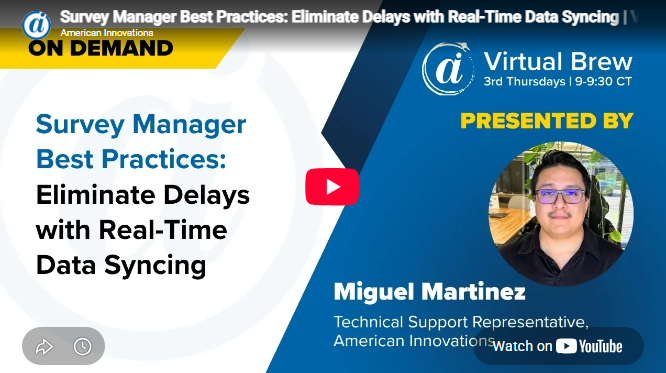
American Innovations demonstrated this workflow during a live Virtual Brew, including how to generate a wireless token, send a survey from PCS to Survey Manager, and review incoming survey data in real time.
Watch the Virtual Brew recording to see the workflow in action.
Getting ready for survey season? Explore PCS Survey Manager or contact our team to learn how real-time data synchronization can fit into your survey workflow.